What you need
A talking-head video is you, speaking to the camera, with the odd picture, a bit of music and a clean ending. EasyPrompter covers it from the script to the MP4:
- EasyPrompter Pro, for recording, Your videos and the video editor. The teleprompter itself is free.
- A computer for editing, with Chrome or Edge. You can record on any device.
- Your takes. Record them in EasyPrompter with eye contact and recording, or use clips from any camera.
The editor is in beta. Everything in this guide works today, and we're still adding to it. Before you film, remember: a tight script saves more editing time than any trick here. See how to write a teleprompter script.
Step 1: Save your take
Record as usual: press Start camera, then the red Record button, and read. When you press Stop, the take sheet opens. Press Save to my videos: the take uploads to your account while you carry on. Save video still keeps a copy on the device, if you want one.
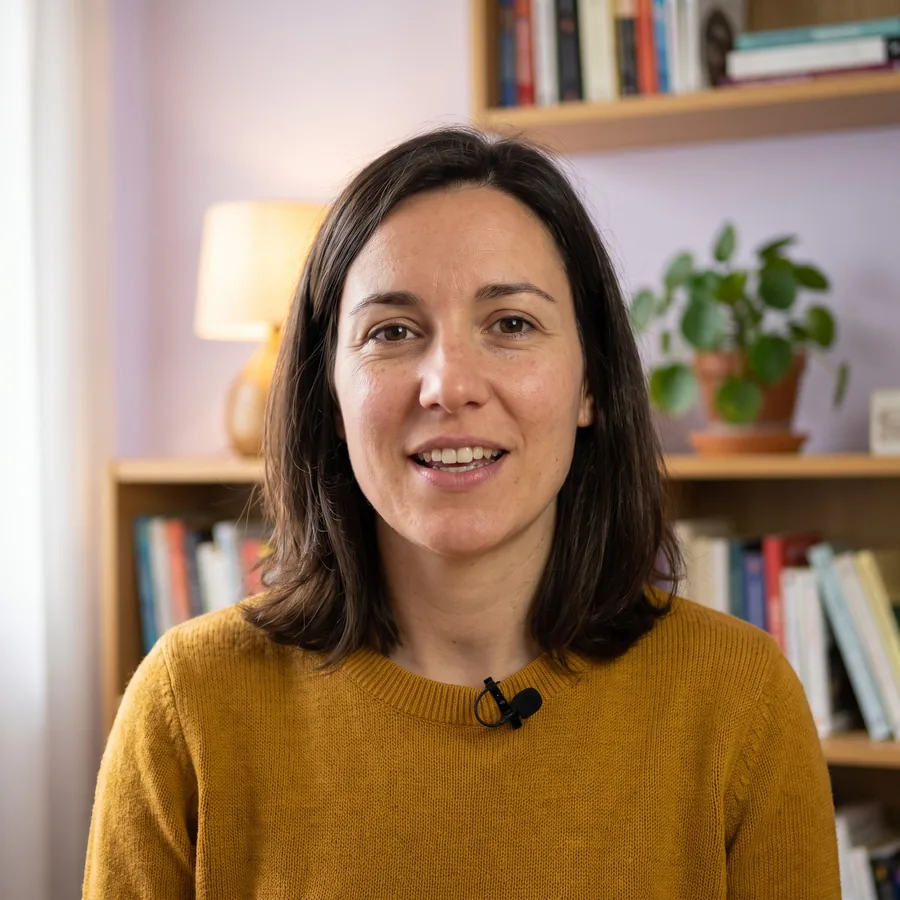
The iPhone, iPad and Mac app have the same Save to my videos button after a take, so you can record on your phone and edit on your computer.
Do two or three takes of anything that matters. It's quicker to pick the best line from three takes than to fix a weak one. In the editor, each take is its own clip.
Recorded elsewhere? Open Your videos from the tools next to your script and press Add files. Video (MP4, WebM, MOV), sound (MP3, M4A, WAV, AAC, OGG) and pictures up to 2 GB each go in.
Step 2: Open the editor and start from a take
On a computer, in the EasyPrompter web app, press Video editor in the tools next to your script. The editor opens in a new tab.
The start screen, Make your video, gives you three ways in:
- Start from a take: press Open next to a take. It goes on the main track, and the video takes its shape. This is the quickest way.
- New video: pick Horizontal (YouTube, websites, presentations), Vertical (Reels, TikTok, Shorts, Stories) or Square (feeds and ads).
- Recent projects: open one you started before. Projects are kept in this browser, on this computer.
Step 3: Find your way around
The editor has four areas. You'll spend most of your time in the timeline, and glance at the player to check every change.

- Your videos: your takes, pictures and sounds, each with buttons for the tracks it can go on. The Text and Transitions tabs are just below Media.
- The player: the video as it will be exported, from the playhead.
- Settings: what you can change on the selected clip, in tabs: Transform, Color, Audio and Speed.
- The timeline: B-roll on top, then Main video, Music and Sound effects, from left to right in time.
Click a clip to select it, drag it to move it, and drag its ends to make it shorter. Click on the ruler to move the playhead, and press play in the player to watch from there.
Step 4: Put your takes in order
Started from a take? It's already on the Main video track. To add the next one, move the playhead to the end of the first take and press Main video under the next take in Your videos. You can also drag a file onto a track.
- The Main video button of a take
- The Main video track
Start with the hook. If your strongest line is in Take 2, put Take 2 first. Viewers decide in the first seconds whether to stay, and nobody will know the order you recorded in.
Step 5: Cut the stumbles and the dead air
Play the take and stop just before a stumble, a long pause or a false start. Then:
- Park the playhead where the good part ends and press Split here (or Split above the timeline).
- Move the playhead to where the good part starts again and split once more.
- Click the piece in between and press Delete, then drag the rest of the take back against the first part.
- The cuts, at the playhead
- Split here, in Quick edit
At the start and the end of each take, use Trim start and Trim end (or drag the clip's edges inwards) to drop the second where you look down at the Record button.
Cut on a breath. Splits sound most natural in the small pause before a new sentence. Keep a few frames of silence on each side so words don't get clipped.
Every cut in the same shot makes a small jump in the picture, called a jump cut. On YouTube that's normal and even helps the pace. If it bothers you, cover it with a picture on the B-roll track: see how to add B-roll, music and sound effects.
Step 6: Get the sound right
People forgive a soft picture, but not bad sound. Select a take and open the Audio tab:
- Volume: keep your voice at 100% and turn other things down, rather than pushing your voice up.
- Fade in and Fade out: leave them at 0 between takes, so the cuts stay tight. Use a short fade only at the very start and the very end.
- Sound levels, above the timeline, shows every track at once. Listen once with headphones and once on a phone speaker: if you can't hear a word on the phone, something else is too loud.
Step 7: Fix the color and the framing
Select a take and open the Color tab. Small moves are best:
- White Balance: start with a preset. Daylight for a window, Tungsten for warm lamps. Then nudge Temperature (warmer or cooler) and Tint (greener or pinker) until your skin looks like it does in real life.
- Color Wheels: lift the Shadows a little if your face looks dark, and keep the Highlights from glowing.
- Curves, HSL and LUT are there for finer work, if you know them.
To frame yourself tighter, open the Transform tab: Crop trims the edges and Scale zooms in. In a vertical video, keep your eyes about a third of the way down the frame.
Takes from the same session should match. Set one, then give the others the same values.
Step 8: Export the MP4
Press Export at the top right. Choose MP4 (H.264), the format every platform takes, and a resolution: 1080p suits almost everything, and you can go up to 4K. The video is put together on your computer, in your browser.
Keep the tab open while it exports. When it's done, the video is in your downloads, and the editor offers to keep a copy: press Save to my videos to have it in your account, on every device you sign in on.
A quick checklist before you post
- The first sentence is the hook, and it starts within the first second
- No stumbles, no long pauses, no look down at the Record button
- Your voice is clear on a phone speaker, and the music stays under it
- The takes match in color
- The shape fits the platform: Horizontal for YouTube, Vertical for Reels, Shorts and TikTok
- It ends on one clear ask: subscribe, book a call, read the link
Frequently asked questions
Do I need editing experience?
No. A talking-head video only needs a few moves: cut the stumbles, cover a jump cut with a picture, put music underneath and export. The editor shows just those, on four tracks.
Can I edit a take I recorded in the iPhone or Mac app?
Yes. Press Save to my videos after the take in the app, or add it from Photos or Files in Your videos. It goes to your account, and the editor on your computer shows it.
How long can my video be?
As long as your files fit: up to 2 GB each and 10 GB in Your videos. For talking-head videos of a few minutes, that's dozens of takes.
Does the editor work in Safari or Firefox?
Chrome or Edge on a computer works best, because the editor uses the browser's own video tools to cut and export on your computer. If your browser can't open a file, the editor tells you.
Is my edit saved?
Yes, as you go, in the browser on the computer you edit on. The start screen lists your recent projects. The finished video only exists once you export it, and Save to my videos then keeps it in your account.
Can I add a title or a lower third?
Yes. Open the Text tab on the left and add a title, then set its font, colors, position and animation in the settings on the right.
Edit your next video in EasyPrompter
Record under the lens, save the take to Your videos and open the video editor in the web app.