A beam splitter teleprompter lets you read a script while looking straight into the camera lens. Newsrooms use them, and small versions for phones and tablets have made them common for creators and teachers. The catch is that the glass shows the screen as a reflection, so normal text appears backwards. That is what teleprompter mirror mode is for.
This guide explains how the rig works, why mirroring is needed, when you also have to flip the text upside down, and how to set up a phone or tablet so the words read cleanly in the glass. If you are new to prompting in general, start with how to use a teleprompter and come back here when the hardware arrives. Filming clients with a rig? See EasyPrompter for videographers.
How a beam splitter teleprompter works
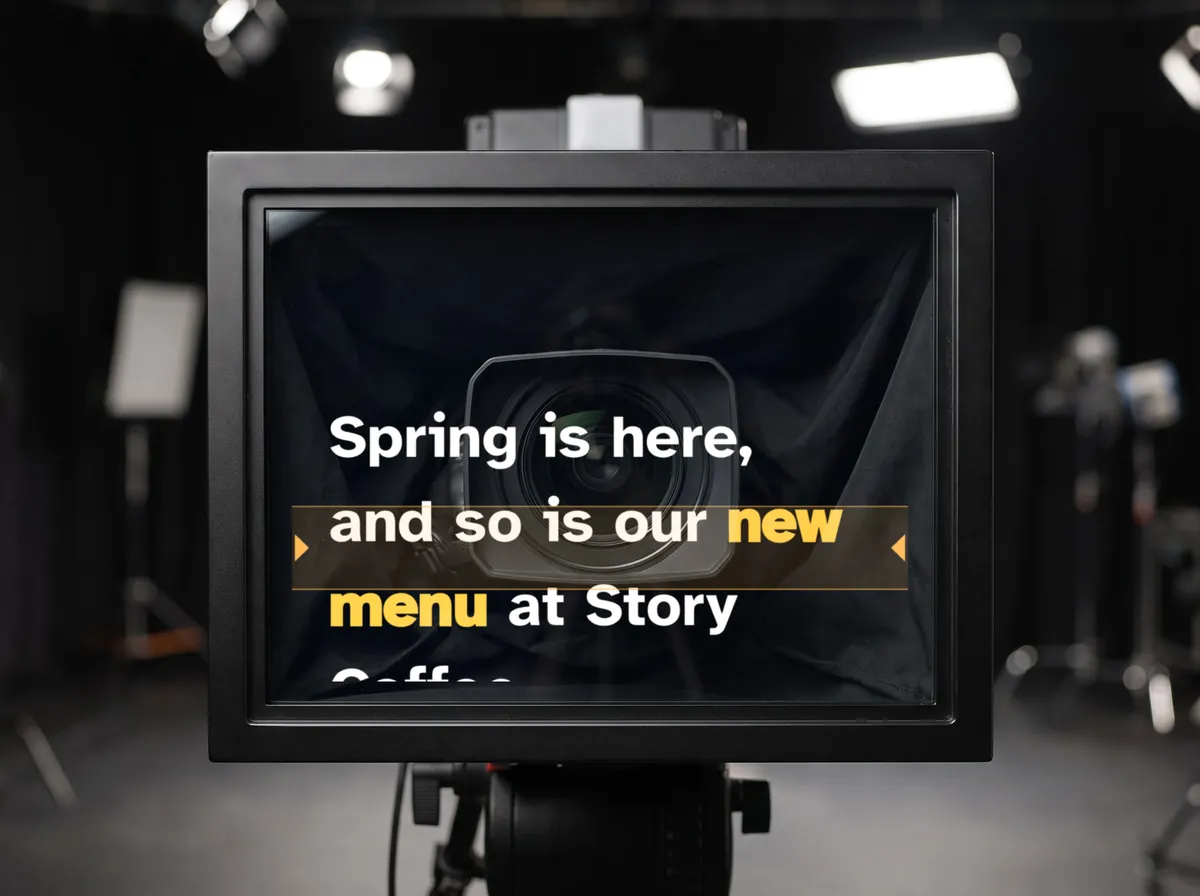
The heart of the rig is a sheet of partly reflective glass, usually called beam splitter glass, mounted at roughly 45 degrees directly in front of the camera lens. A screen lies underneath it, facing up. Three things happen at once:
- The camera looks through the glass. Most of the light from the scene passes straight through to the lens, so the camera records you as if the glass were not there.
- The screen reflects toward you. Light from the upward-facing screen hits the angled glass and bounces horizontally toward the presenter, so the text appears to float in front of the lens.
- A hood blocks the rest. A cloth or rigid hood wraps the space between the lens and the glass, so the camera sees only the scene and not the room behind it or the screen.
Because the reflected text sits on the same line as the lens, viewers see eye contact instead of a glance off to the side.
What the split ratio means
Beam splitter glass is often described with two numbers, such as 70/30 or 60/40. The first is roughly how much light passes through to the camera, the second how much is reflected back toward you. More transmission keeps the camera image brighter but makes the text dimmer; more reflection makes the text easier to read but costs the camera more light. Either way, expect the camera to lose some exposure behind the glass, so you may need a little more light on yourself or a slightly higher ISO than without the rig. For phone and tablet rigs, a bright screen matters more than the exact ratio.
Why the text must be mirrored
A reflection reverses left and right. Hold a printed page up to a bathroom mirror and the letters read backwards; the glass of a prompter does the same thing to the screen beneath it. To cancel that out, the prompter software draws the text reversed on the screen, so that after the reflection it reads normally.
On the device itself the script now looks backwards, which is expected: you read only the reflection in the glass.
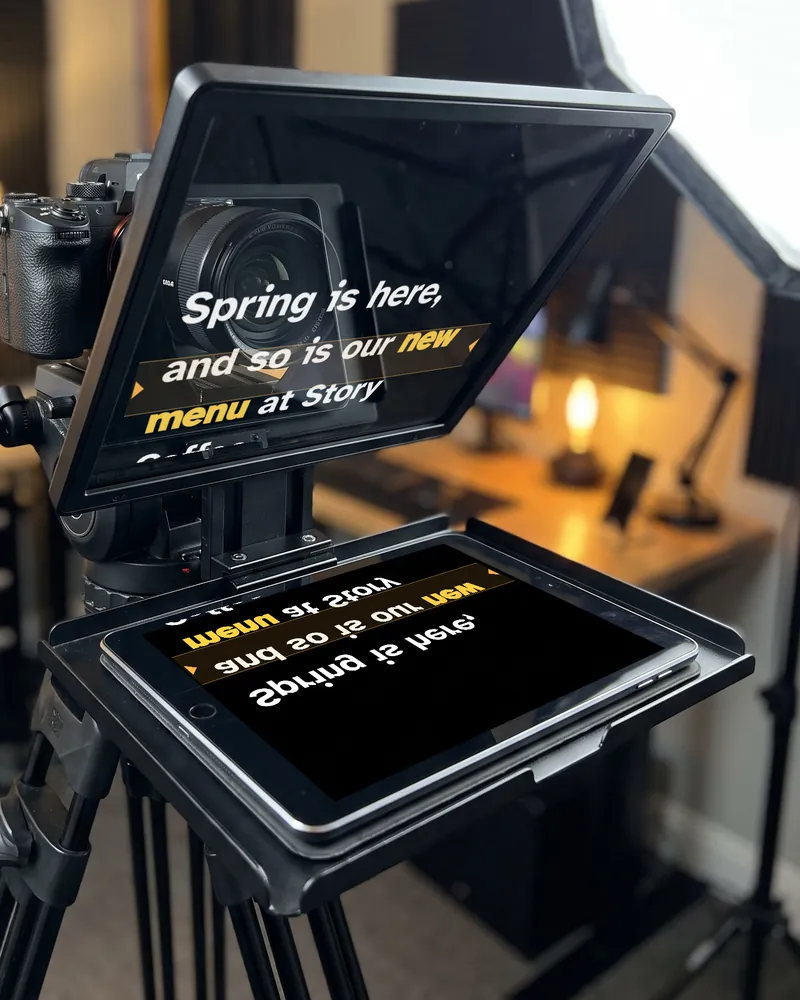
Tip: In EasyPrompter the switch is called Mirror, in the prompter's quick settings. You can also press M on a keyboard or remote to switch it on and off while prompting. See mirror and flip settings in the user guide.
When to flip the text upside down as well
Mirroring fixes left and right. Whether you also need to flip the text vertically depends on how the screen sits under the glass. Two situations call for it most often:
- The screen faces the wrong way for your rig. On a 45-degree glass, the edge of the screen nearest you appears at the top of the reflection. If your phone or tablet lies with its top edge toward the camera, the reflected text comes out upside down.
- You mounted the device upside down on purpose. People often rotate a tablet so the charging cable or a bulky case edge sits where the rig needs it. The text then needs flipping to compensate.
Rather than working out the geometry, test it. Put a short line on screen, start the prompter and look into the glass from where you will sit. Then:
- If the words read backwards, toggle Mirror.
- If the words are upside down, toggle Flip.
- If they still look wrong, try the other combination. There are only four, and exactly one reads correctly.
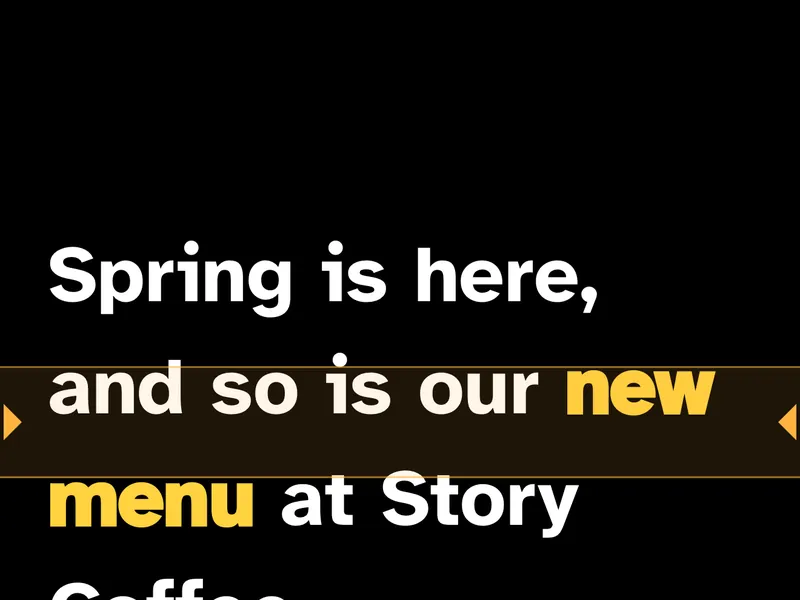 BackwardsSwitch MirrorUpside downSwitch FlipBackwards and upside downSwitch bothThe right way roundYou're ready to roll
Also lock your device's screen rotation. A phone lying flat can decide on its own to rotate the page when you nudge the rig, which undoes your setup mid-take.
Step-by-step: phone or tablet setup in EasyPrompter
EasyPrompter runs in the browser and in the app for iPhone, iPad and Mac, so the device under the glass needs nothing special. Every prompter setting, including Mirror and Flip, works for free and without an account.
- Load your script. Open EasyPrompter or the app on the phone or tablet, then paste or type your text. Without Pro nothing is saved, so keep a copy elsewhere, or go Pro to save your scripts and sync them between devices.
- Tap Mirror. Press Start, open the quick settings with the sliders button in the bar, and tap Mirror. Tap Flip only if your test above shows you need it.
- Size the text for the distance. The reflection is only as large as the screen, and you may be sitting a couple of meters back. Start larger than feels natural, then reduce until you can read comfortably with a few words per line. The font size ranges from 10 to 120 px, and you can adjust it with + and − while prompting.
- Pick high-contrast colors. White or yellow text on a black background reflects best, because the black areas of the screen send almost no light to the glass and stay invisible. Avoid white or cream backgrounds here: a bright background turns the whole glass into a glowing panel and can wash out the camera image.
- Add side margins. Phone and tablet rigs often have glass slightly smaller than the screen, or a hood frame that cuts off the edges. In Spacing, increase Side margins (0–30%) until every line sits inside the visible area of the glass.
- Set the reading line. The amber reading line marks where your eyes should sit. Move it with Line, then Position, so it lines up with the camera lens behind the glass, which keeps your eye line on the camera. For many rigs this is somewhere around the upper third.
- Set the speed. Start near the default of 140 words per minute and adjust from there. Our guide to teleprompter reading speed covers how to find your pace.
- Prepare the device. Turn brightness up to maximum, switch on Do Not Disturb so notifications do not pop up in the glass, and plug in the charger for long sessions. EasyPrompter keeps the screen awake while prompting in browsers that support the wake lock feature.
- Start the prompter and do a full read-through in the glass before you record.
Controlling the prompter when the screen is under glass
Once the device is inside the rig, you cannot easily reach it. Tapping the screen means reaching under the glass and leaving fingerprints on the reflection. There are two ways around it: your phone as the remote, or a Bluetooth remote.
Your phone as the remote (Pro)
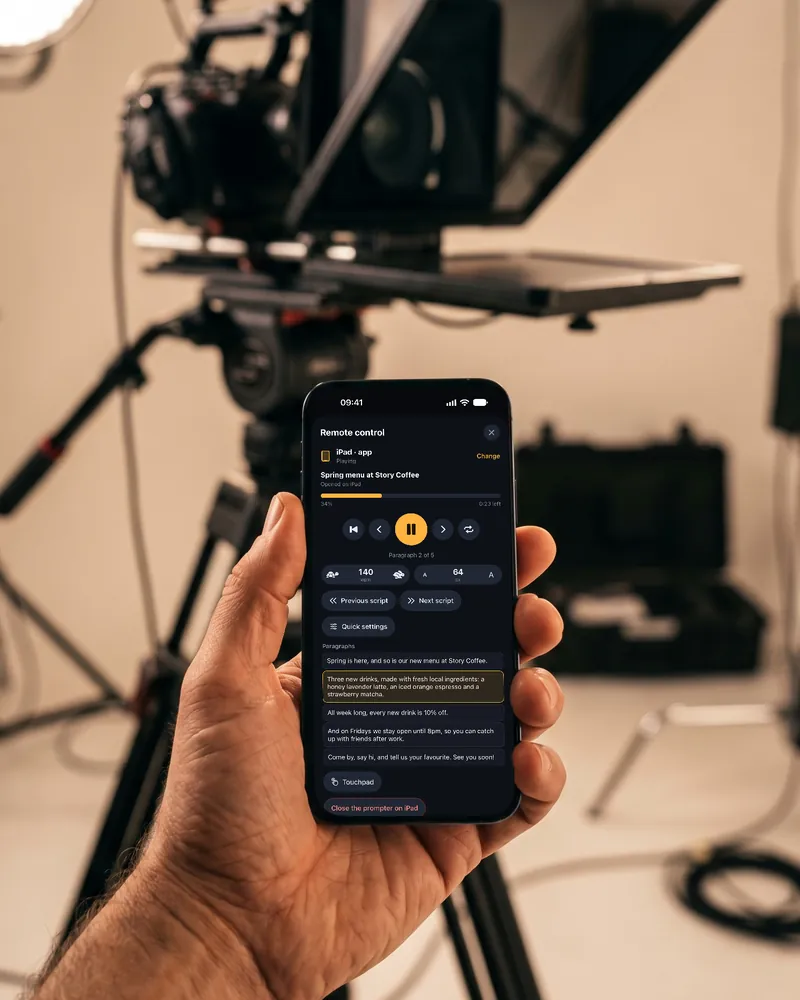
With Pro, open the remote on your phone and scan the QR code shown by the device in the rig. You then play and pause, change the speed and the text size, jump to any paragraph for a pickup, and switch Mirror and Flip without touching the rig. See remote control.
Bluetooth remotes and keyboards (free)
EasyPrompter responds to standard keys:
| Key | What it does |
|---|---|
| Space, Enter or K | Play or pause |
| ↑ / ↓ | Speed up or slow down by 10 words per minute |
| ← / →, Page Up / Page Down | Previous or next paragraph |
| Home | Back to the top for a retake |
| M | Mirror on or off |
| + / − | Text size up or down |
Most presentation clickers send Page Up and Page Down, which move to the previous or next paragraph. A small Bluetooth keyboard or a remote that can send Space gives you play and pause as well. Pair the remote with the device under the glass, not with your camera. More detail is in the remote control section of the user guide.
The on-screen controls hide while the text is scrolling, so buttons do not show up in the reflection during a take.
Studio prompters with a monitor
Larger rigs often have their own monitor under the glass, connected with HDMI. EasyPrompter can drive it:
- From a computer: start the prompter and choose Another screen in the quick settings. The prompter moves to its own window: drag it onto the prompter's monitor and press Full screen. Your laptop screen becomes the control panel.
- From an iPhone or iPad: connect the monitor, and the prompter shows there while your device stays the control panel.
Turn on Mirror as usual. The monitor shows exactly what you set, so check it once in the glass from the talent's seat.
Glass, hood and light tips
- Close the hood completely. Any gap lets light from behind the camera bounce off the back of the glass into the lens. If you see a faint haze or room details in your footage, look for gaps around the lens.
- Keep the lens close to the glass and check the corners of the frame on a wide lens, where the hood or rig often creeps into shot.
- Watch for light behind you. A window or lamp behind the presenter shines into the front of the glass and reflects back at you, competing with the text. Darker surroundings make the text pop.
- Clean both sides of the glass with a microfiber cloth. Dust and fingerprints show up in the reflection and can soften the camera image.
Common problems and fixes
| Problem | Likely cause | Fix |
|---|---|---|
| Text reads backwards | Mirror mode is off | Turn on Mirror or press M |
| Text is upside down | Screen orientation under the glass | Turn on Flip, or rotate the device and lock rotation |
| Double or ghosted letters | Both surfaces of the glass reflect, slightly offset; worse with thick glass | Use larger, bolder text, sit closer to straight on, and use proper beam splitter glass (often coated on one side) instead of plain glass |
| Studio lights visible in the glass | Lights in front of or above the rig reflect off the glass | Raise or move the lights, add a flag or the hood's top cover, and keep bright sources out of your view of the glass |
| Text too small or dim | Distance, low brightness or a light background | Increase font size, set brightness to max, use white or yellow on black |
| Lines cut off at the edges | Screen larger than the visible glass | Increase side margins until all text sits inside the glass |
| Eyes look above or below the lens | Reading line not aligned with the lens | Move the reading line position to match the lens height |
| Hard to reach the screen | Device is inside the rig | Use your phone as the remote (Pro), or pair a Bluetooth remote or keyboard |
| Buttons visible in the glass | Prompter is paused | Controls hide while reading; start scrolling and they disappear |
Frequently asked questions
What is teleprompter mirror mode?
Mirror mode reverses the text left to right on the screen. A beam splitter glass reflects the screen and reverses it again, so the presenter sees normal, readable text in the glass. In EasyPrompter the setting is called Mirror, and the M key toggles it.
Do I need to flip the text upside down too?
Only if the reflection reads upside down. That depends on which way the screen lies under the glass, or whether you mounted the device upside down for cable or case reasons. Test with a short line: if it is backwards, toggle Mirror; if it is upside down, toggle Flip.
Can I use my phone as a beam splitter teleprompter screen?
Yes. Many small rigs are built for phones and tablets. Open EasyPrompter in the browser or the app, turn on Mirror, use large white or yellow text on black, add side margins so lines stay inside the glass, and control it from your phone or a Bluetooth remote.
Why do I see double letters in the glass?
Both the front and back surfaces of the glass reflect the screen, slightly offset from each other. Purpose-made beam splitter glass is usually coated to favor one surface. Larger, bolder text and viewing the glass straight on also make ghosting less noticeable.
Does the glass make my video darker?
Usually a little, because part of the light is reflected instead of passing to the lens. As a rule of thumb, add some light on yourself or raise exposure slightly compared with shooting without the rig.
Does mirror mode in EasyPrompter cost anything?
No. Mirror, Flip and every other prompter setting are free on the web, iPhone, iPad and Mac, without an account. Pro adds your phone as the remote, practice links, saved scripts and the AI script writer.
Try mirror mode on your rig
Open EasyPrompter on the phone or tablet under your glass, paste a script and tap Mirror. No account needed.